On-Platform Communication (OPC) is Xometry’s new, centralized messaging system built directly into Workcenter. It replaces scattered emails, texts, and phone calls with a single, organized hub for all job-related communication. With OPC, every message, attachment, and update is automatically tied to the correct job, giving you clearer visibility, faster responses, and a more efficient way to collaborate with Xometry.
In this guide, we’ll walk through how to start a conversation, manage your messaging in Workcenter, stay organized with the Inbox and Queue, and use new notification tools to ensure you never miss an update.
Here’s a breakdown of the new functionality:
1. Starting New Conversations
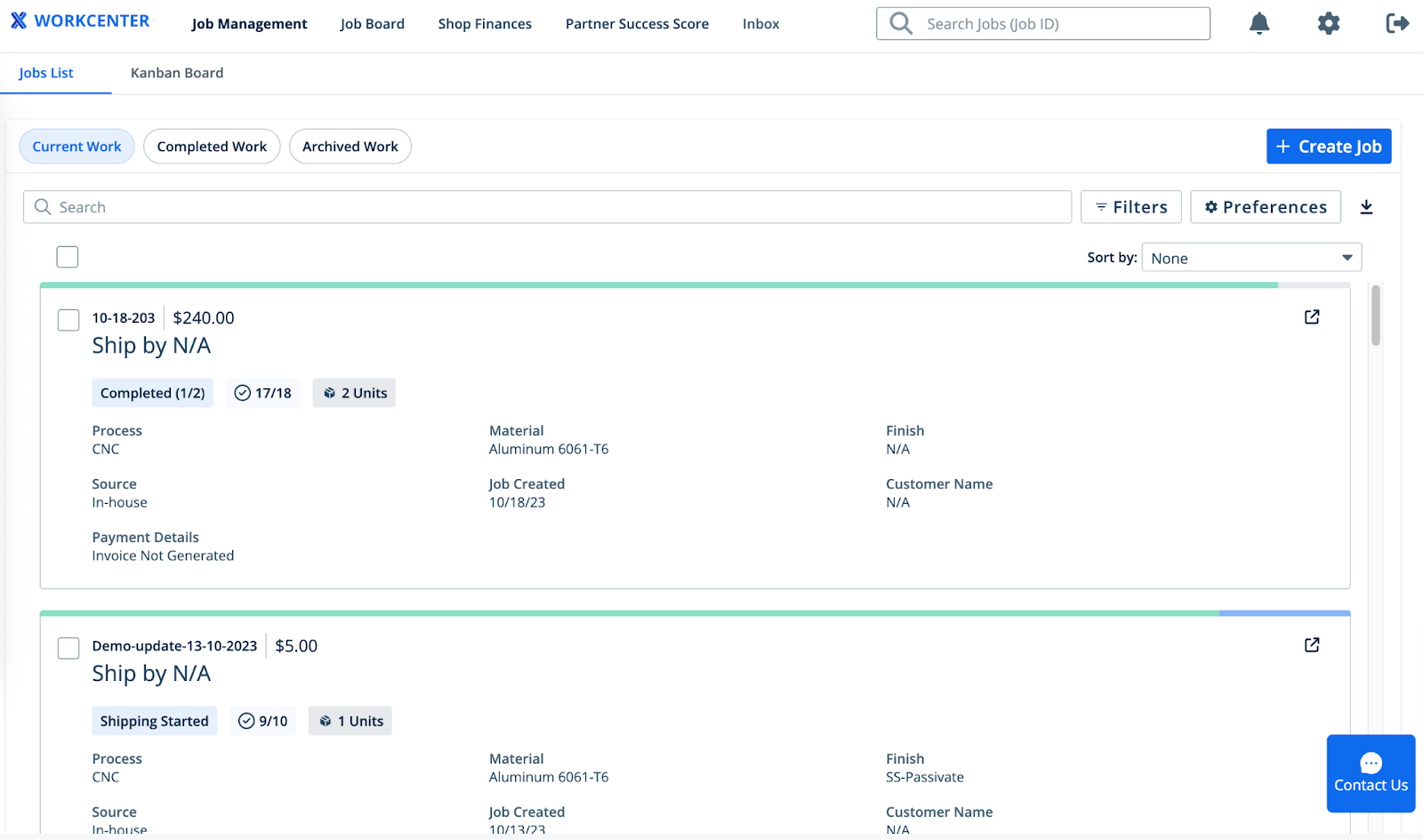
You can now initiate all communications directly from the Job Management Details Page, ensuring every conversation is automatically linked to the correct job.
- Initiate a Conversation: Select "New Message" at the top of the page to start a conversation with Xometry.
- Automatic Job Details: The Job ID is automatically populated, saving you time and preventing errors.
- Specific Part Selection: Select one or more specific parts related to your question using a new selector that includes part thumbnail images and details.
- Clear Reason for Contact: A simple dropdown menu helps you categorize your inquiry, routing it to the right Xometry team member faster.
- Description: Free-form text field to add additional information about the reason for contact.
- File Uploads: Attach all necessary files, such as photos or documents, directly within the creation form.
Floating Action Button
Automatic Job Details / Specific Part Selection / Clear Reason for Contact
2. Managing Ongoing Conversations
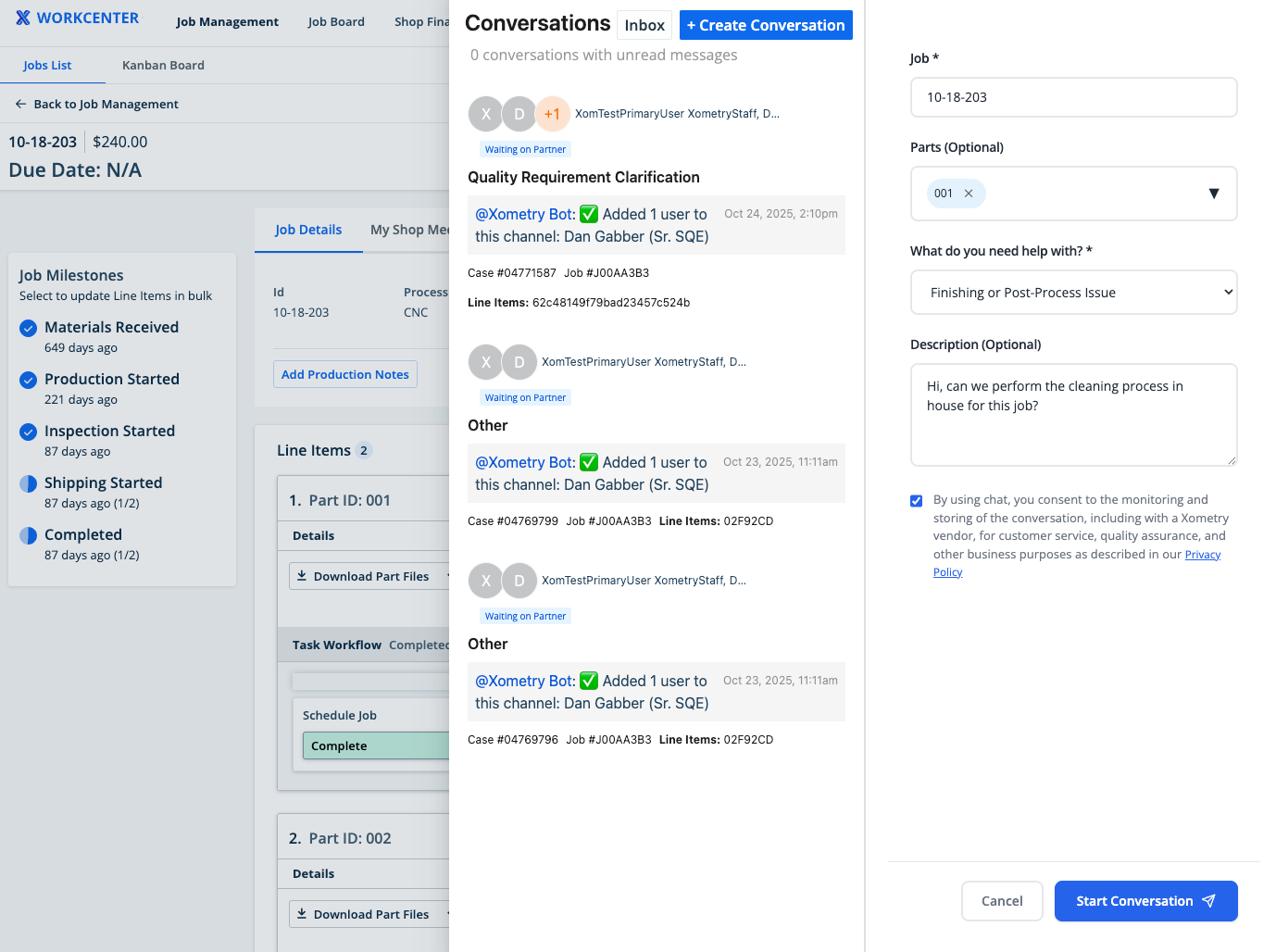
All ongoing communication now happens within a dedicated Communications Pane right in your WorkCenter or you can now respond to active conversations without leaving your email client. Simply reply to any OPC notification email, and you response will automatically post to the conversation thread in Workcenter. This allows you to stay responsive and keep production moving while on the go.

When a production issue is resolved and a Xometry staff member marks the conversation as closed, you will receive a final email notification. This email includes a transcript of the most recent messages for your records. Once a thread is closed, email replies are disabled to ensure data integrity; you can re-open the thread at any time by clicking the link in the email to log into Workcenter.
The conversation pane in Workcenter allows you to tailor your communication and conversation to communicate with stakeholders effectively with the following features:
- Rich Text Formatting: Emphasize important details in your messages using bold, italics, and bullet points.
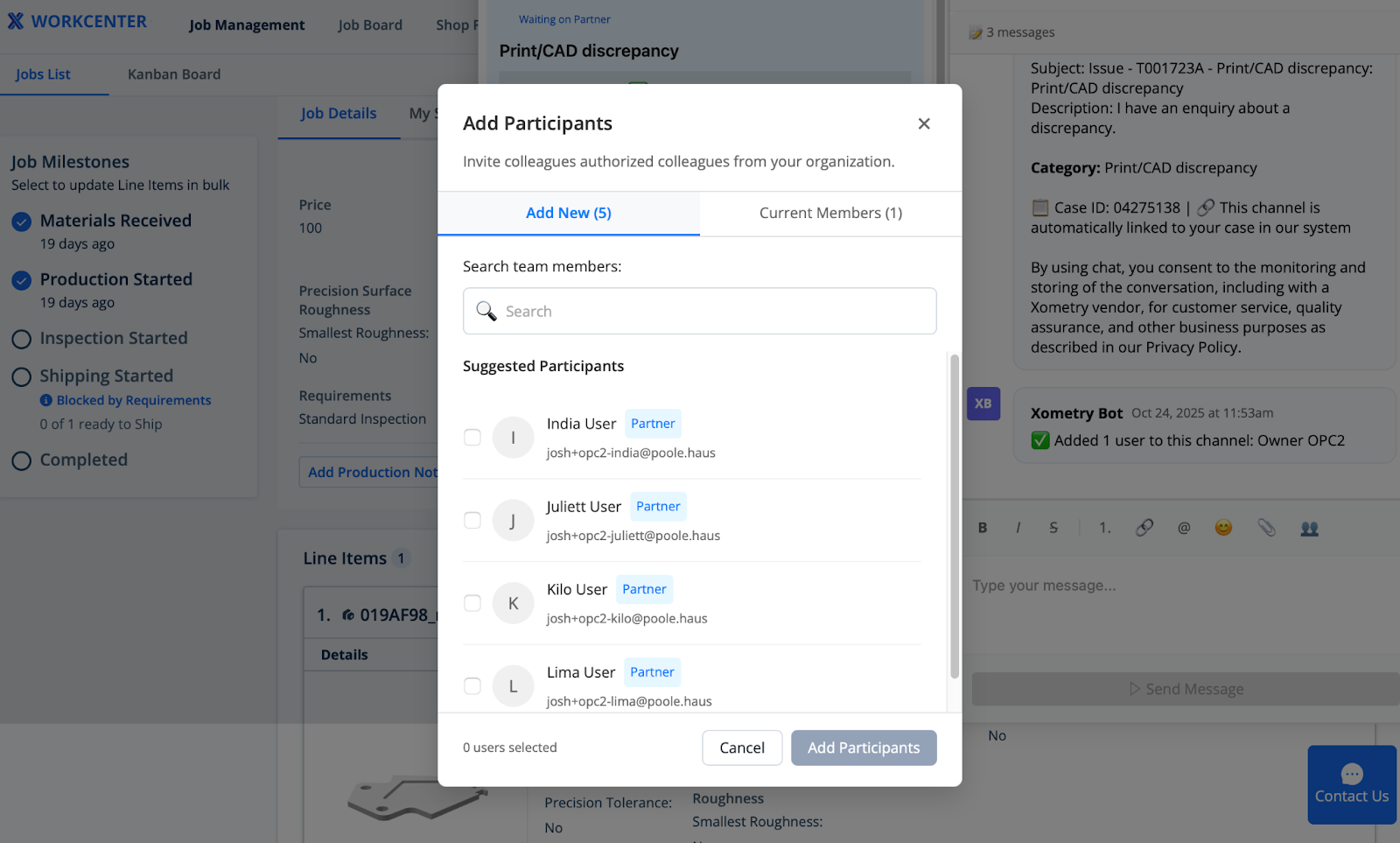
- Add Team Members: Clicking the 👥 icon will let you add other registered users of Workcenter from your organization to a conversation to collaborate and keep everyone in the loop.
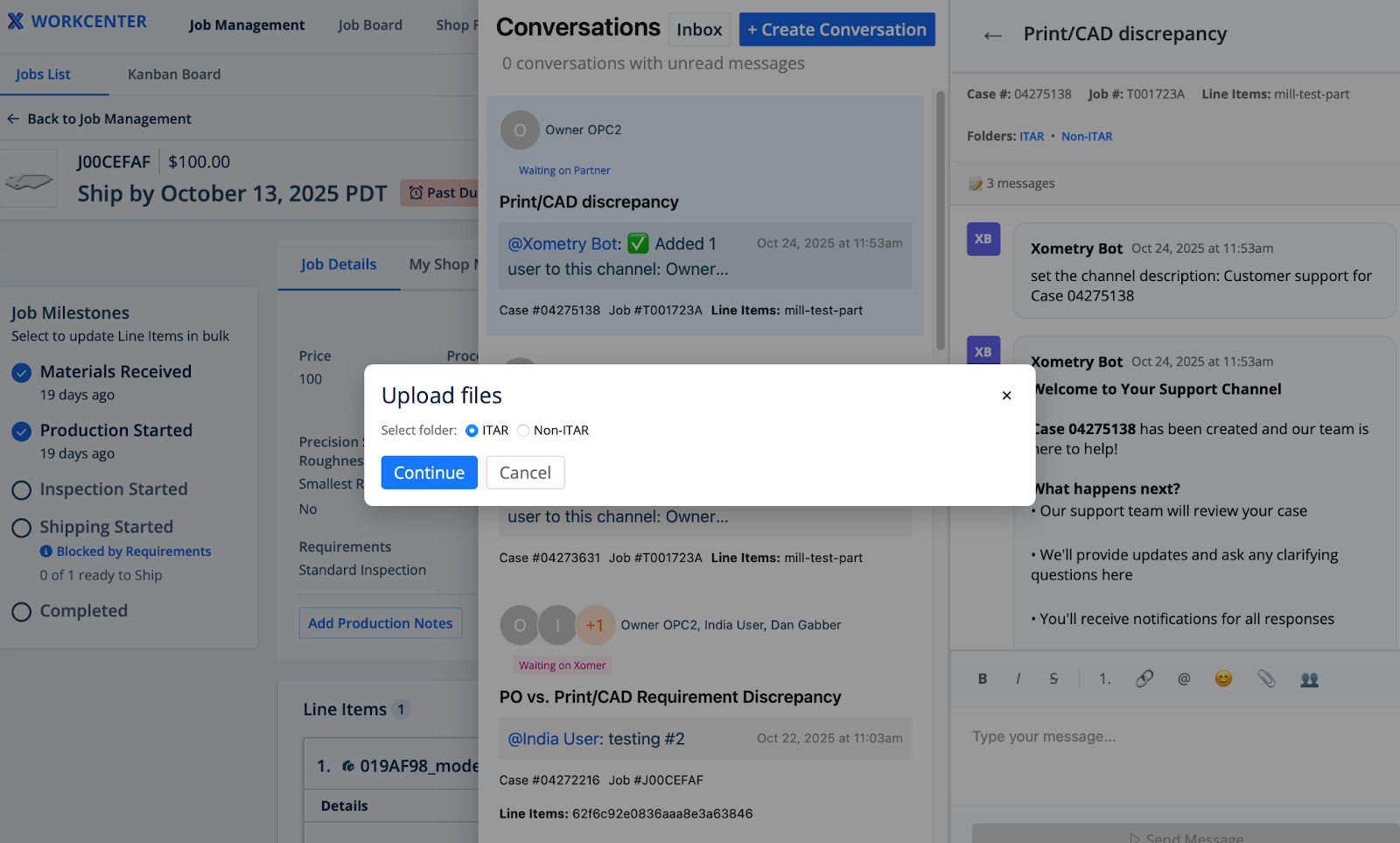
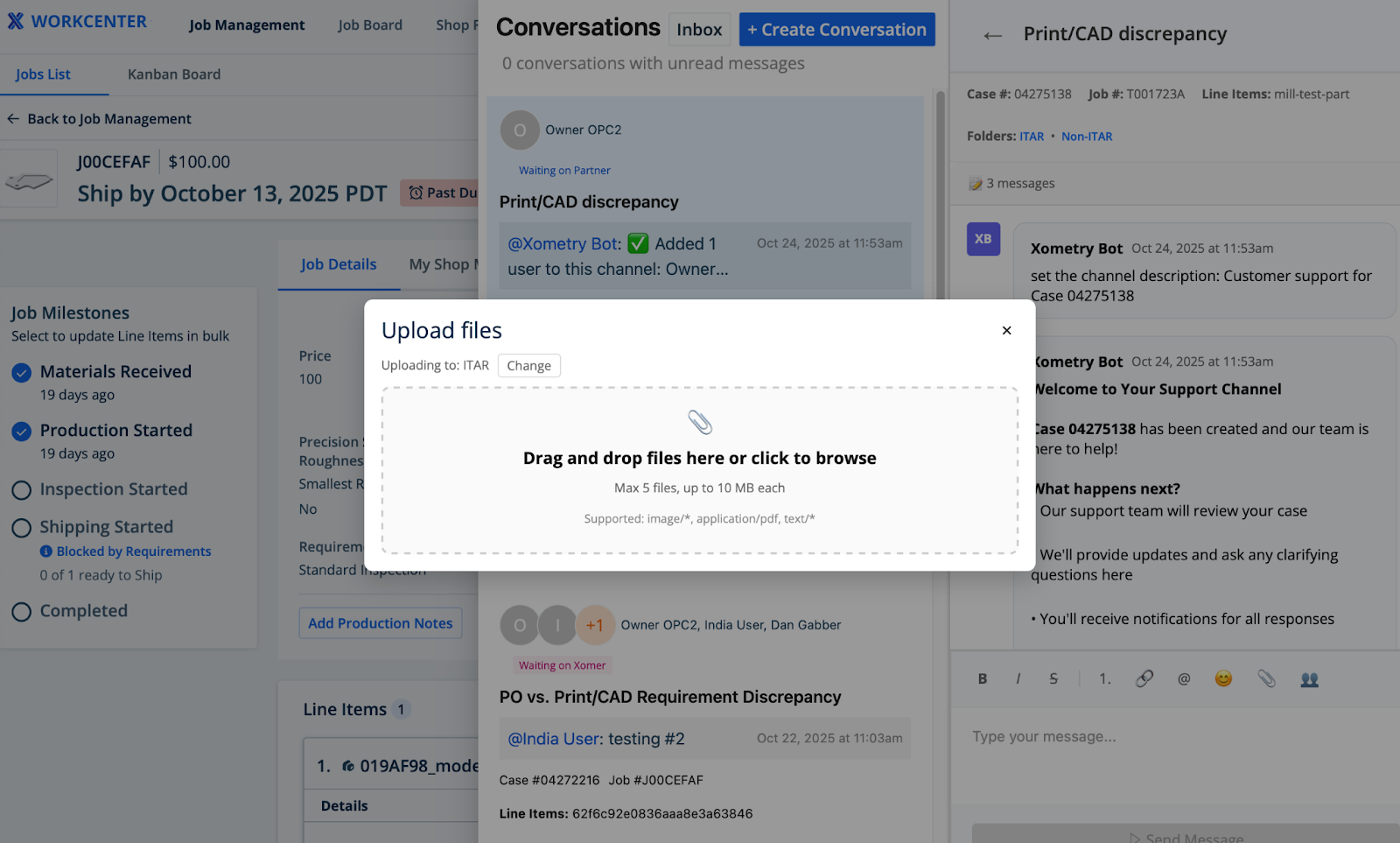
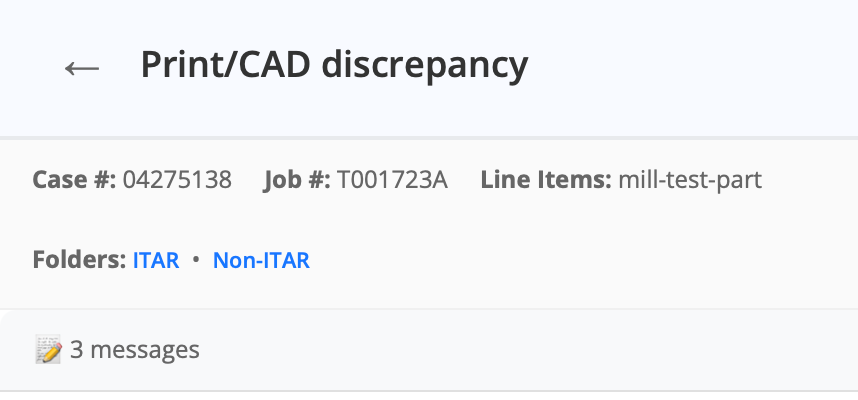
- Centralized File Access: Clicking the 📎 will let you upload files to the conversation. Depending on the job, you’ll have the ability to directly upload to ITAR or non-ITAR folders. Files can be viewed by clicking on the ITAR or Non-ITAR link in the header of the Communications Pane.
After you and the Xometry staff member both acknowledge that production issue(s) under the scope of conversation have been resolved, the Xometry staff member will mark the conversation as closed, which will archive the conversation. If you have any new issues you’d like to discuss, please initiate a new conversation through the New Message flow above. This will help with clear conversation visibility and tracking for future references.
Note: Based on best practices to keep conversations clearly scoped, Xometry staff members may also proactively create conversations if new issues arise.
Adding Team Members
Uploading Files (ITAR example)
Viewing Uploaded Files
3. Staying Organized with the Inbox and Queue
We've introduced several views to help you manage and prioritize your active conversations.
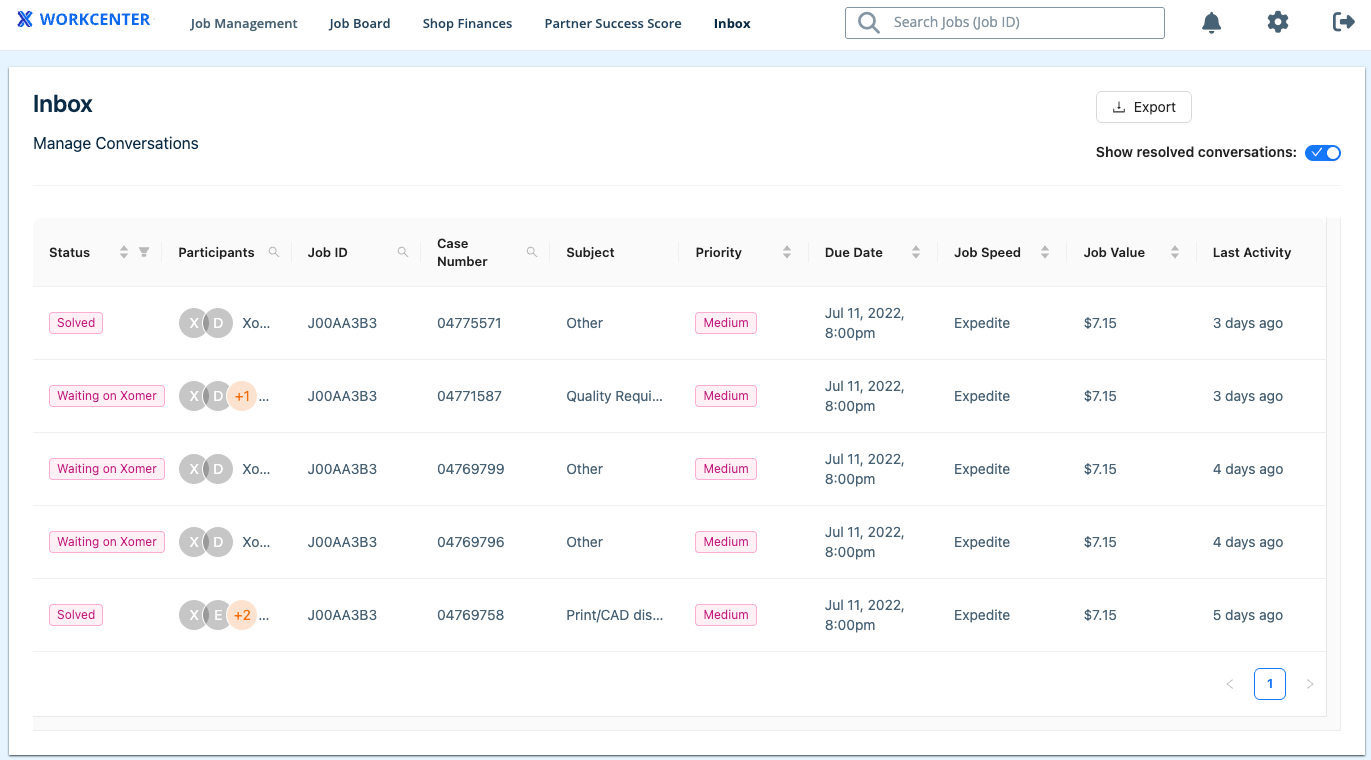
- The Inbox: This is your central hub for all conversations, active and archived. The Inbox can be accessed directly from the WorkCenter Header by clicking Inbox, or from the Queue.
- By default, you will see all conversations you are a part of.
- You can easily search your Inbox and filter by Job ID to find past conversations.
- As a default, Shop Owners will be added to all conversations and able to see all interactions. If a Xometry staff member reaches out, Shop Owners will automatically be added to these conversations. As needed, Shop Owners can add other registered shop employees through the participant management workflow.
- Note: This is to ensure any conversations with sensitive information are not globally shared unless explicitly assigned by the Shop Owner.
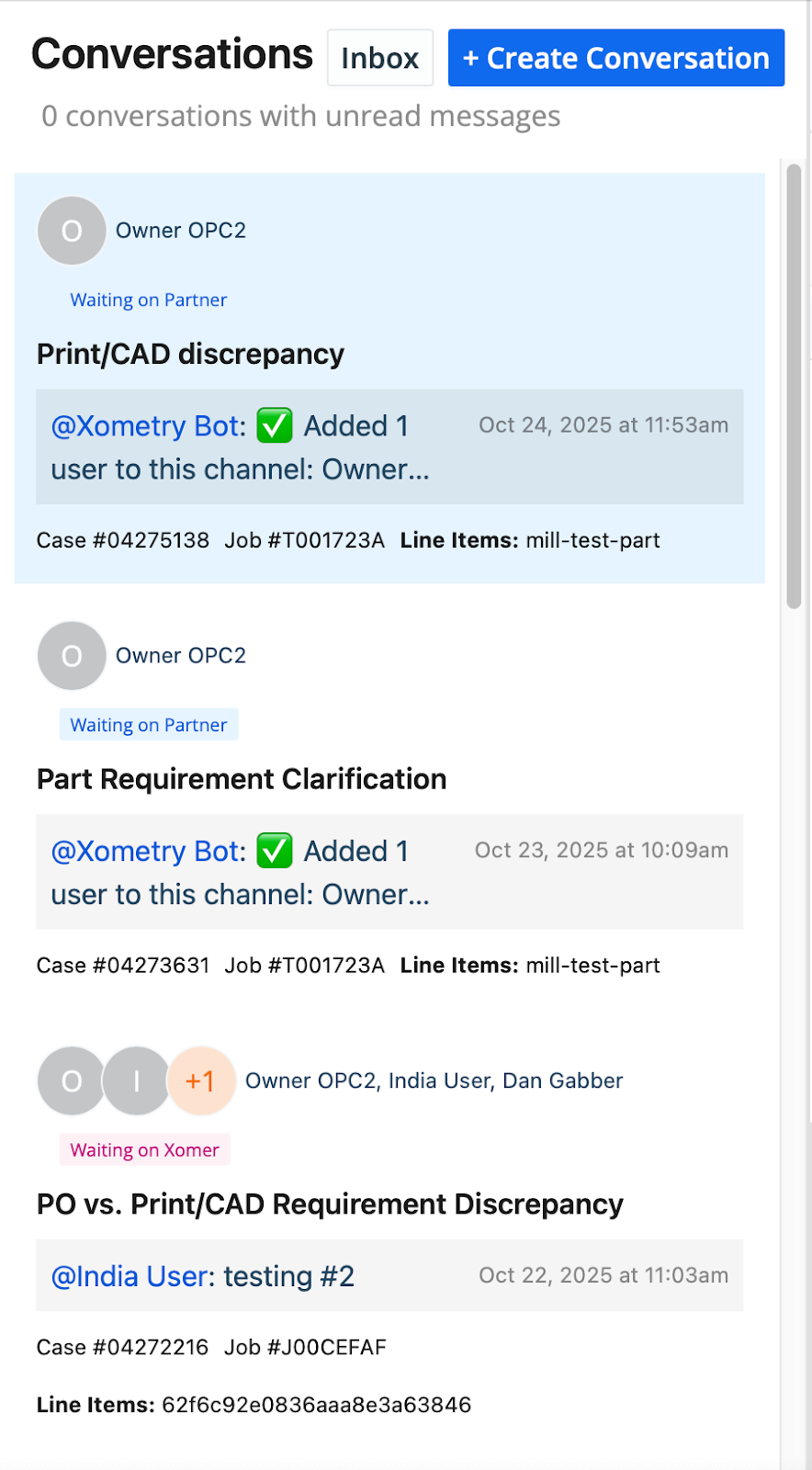
- The Queue: This is a focused view of your active conversations and can be found when you click on the Contact Us button. It is automatically sorted to show you the most urgent items first (conversations with unread messages, followed by jobs with the soonest ship dates).
- Unread Badges: To help you stay organized, "Unread" badges are synchronized across all views. Opening a message in the Inbox or Queue will automatically clear the unread notification on the specific job details.
Inbox
Queue
4. Notifications and Alerts
Stay on top of every update without leaving WorkCenter.
- Header Notifications: The bell icon in the main WorkCenter header will now show an aggregated count of all your unread messages.
- Contextual Alerts: In your Inbox and Queue, each conversation will display a clear count of its unread messages, so you know exactly where to focus.
Coming Soon
This release is just the first step. We are already working on expanding these powerful communication tools to provide consistent, in-context support across the entire platform. Here’s what you can expect in future releases:
- Mobile App Integration: We are working hard to bring the full power of the Communications Hub to the WorkCenter mobile app, so you can manage conversations and get support from anywhere.
- Direct Communication with Buyers: In certain situations, it makes most sense for you to be able to speak with Buyers directly. We are extending On Platform Communication capabilities to enable this, where appropriate.
- Expanded WorkCenter Access: We will be adding On Platform Communications to other key areas, including the Job Board, Shop Finances, Partner Onboarding, and PSS pages. Your questions from these pages will be automatically routed to the correct specialized teams, getting you answers even faster.
FAQs:
- Why did we build On Platform Communications?
- We’ve heard time and time again that one of the top Partner pain points is fragmented, slow communication, creating delays with Job fulfillment. By building On Platform Communications, we are building the foundation to increase visibility of active/prior conversations for Partners and internal Xometry staff members. In the near future, we will be enabling Partners to reach out to Buyers directly where appropriate.
- Do I have to log into Workcenter to respond to a message?
- Not for active threads! If you receive an email notification about a new message, you can reply directly from your email client. You only need to log in to manage participants, upload secure files, or re-open a closed thread.
- How will I be notified if I have an unread message?
- Notifications for active conversations can be found within the OPC Inbox, via the bell icon in the header
- Can I cc my colleagues on an email reply?
- Not at this time. Adding an email address to the cc line of your reply via your email client will NOT add that person to the OPC thread. To include team members, please add them via the participant management tool (👥 icon) within Workcenter.
- When should I use On Platform Communications?
- On Platform Communications will be a replacement for when you would traditionally text or email a Xometry staff member. You’ll get the speed and convenience of text with the added benefit of global visibility and a paper trail of email.
- Please use On Platform Communications for all new conversations you might need to have with Xometry. This helps keep a broader visibility of all communications.
- Will Xometry Case Managers also use On Platform Communications, or will they still be emailing me?
- In most scenarios, Case Managers will use On Platform Communications if they need to reach out to you. Please be on the lookout for unread messages from them in your Inbox. If Case Managers don’t hear back from you within a day or an urgent issue arises, they may still call you directly as needed.
- What happens if I don’t hear back from Xometry and it’s been over a day?
- If you haven’t received a response back yet and it’s been over a business day, please call the Customer/Partner Care team through the general support line (+1-800-983-1959) and ask to be transferred to the Case manager.
- What should I do if I have a question about a job that’s no longer active, or not related to jobs at all?
- You can still access the history of resolved issues by clicking the “Closed” button on the Job Details page. For inquiries not related to active jobs, please continue to email work@xometry.com.